Kaseya MDM: FAQ
The following answers to frequently asked questions will help you get the most out of your MDM experience.
 Can I enroll a virtual machine in MDM?
No. Currently, you'll see a Device is not supported error when you attempt to do so.
What types of enrollment are available?
The available enrollment types are as follows:
- Automated Device Enrollment: Leveraging Apple Business Manager, devices can be preconfigured with specific management settings as soon as they are powered on, bypassing manual setup steps and streamlining the onboarding process. This ensures that devices are enrolled in mobile device management (MDM) from the start, offering zero-touch deployment for organizations.
- QR Code and Link: QR code enrollment is intended for personal (BYOD) iOS and iPadOS devices.
- USB using Apple Configurator: This enrollment type is intended for business or corporate-owned devices and enables additional management capabilities. Currently, it only supports iOS and iPadOS devices.
Should iPhones be powered on or initialized when using USB enrollment?
While being powered on doesn't matter, the iPhone should not be initialized. Connect the phone to USB and follow the steps described in Kaseya MDM: Enrollment. The device will be erased and the new blueprint applied.
Is it possible to enroll a device via USB without erasing it?
Apple recommends clearing the device when it is enrolled as supervised. However, if you back up the primary device to a secondary device before enrolling it, you can restore the backup from the secondary device to the primary device after you complete the enrollment. Complete the following steps:
- Ensure that Find My iPhone is off on both devices to avoid problems during enrollment.
- Use AppleConfigurator or Finder to back up the primary device.
- Restore this backup on the secondary device.
- Use AppleConfigurator or Finder to back up the secondary device.
- Restore the backup of the secondary device to the primary device.
- After restoration, when the primary device shows the Welcome screen on activation, connect it to Apple Configurator and enroll it via the USB method.
- After activation, the device should appear in Kaseya MDM and contain the restored data.
What is a supervised device?
Supervised mode provides more options to manage the device, such as restarting, shutting down, and enabling or disabling lost mode. The Play Lost Mode Sound will work only for supervised devices.
macOS devices are always supervised. iOS and iPadOS devices are supervised if they have been enrolled via USB with the Supervised option checked. You can find out if a device is supervised in the Asset Info section of the device card: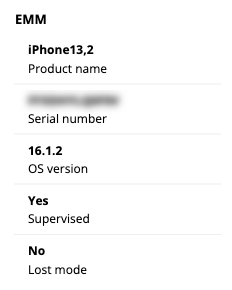
I installed a profile, but the device does not appear in the Kaseya MDM UI.
What's wrong?
There might be a delay in seeing an enrolled device or its data.
Apple does not terminate its requests. However, Kaseya MDM has a 20-minute cache and pings MDM services every 15 minutes to get device information.
So, if you enroll, unenroll, change lost mode, or perform any other actions with a device, there may be a delay in reporting this information to Kaseya MDM. If you have been waiting for more than one hour and still do not see a device, please open a ticket with Kaseya Support for assistance. When doing so, be sure to include the device's serial number.
I opened the Integrations or Connectors page and saw an EMM token error. What does this mean?
This error can appear in several different formats:
"EMM authentication token is expired."
"EMM token is invalid."
"EMM token is missing."
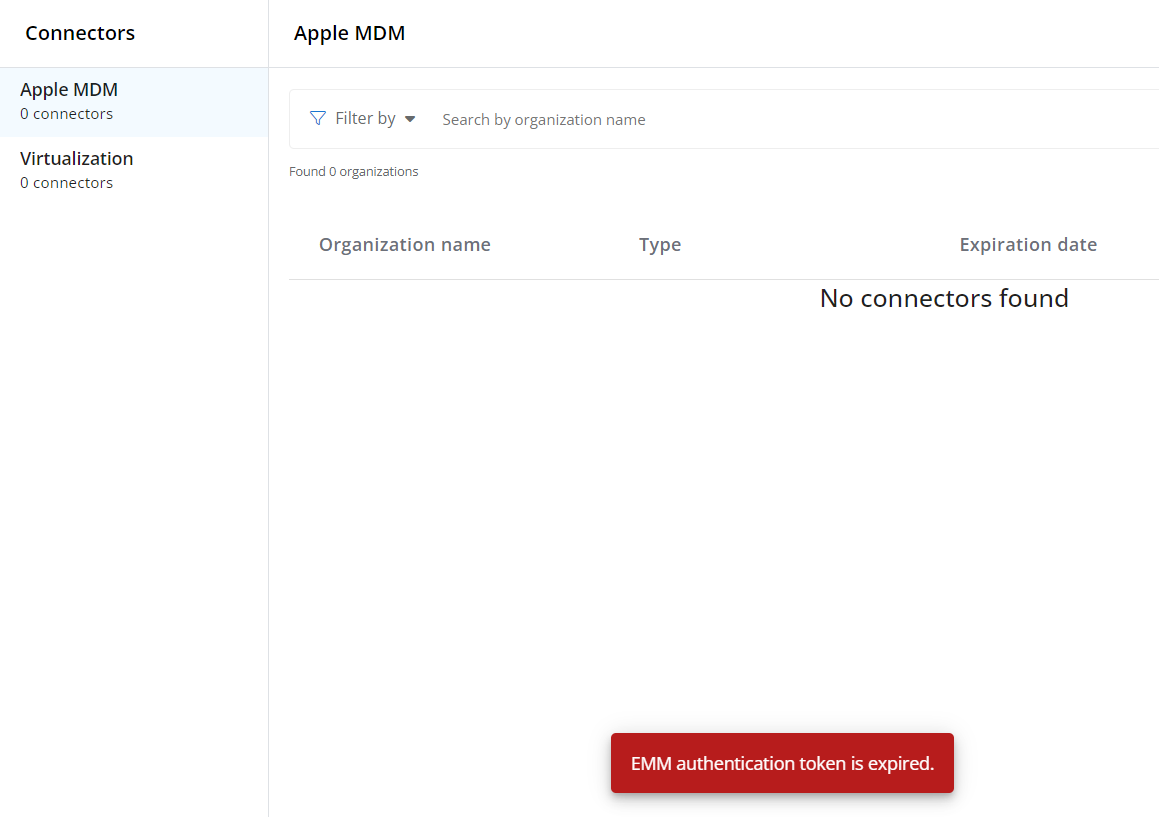
It can occur as a result of MDM licensing being misconfigured in the Admin app. To resolve the issue, contact Kaseya Support for assistance.
I only see the Erase command for the device. Where are the other options?
Due to Apple limitations, the following conditions apply to MDM-enrolled devices:
- Devices enrolled via QR Code and Link only have access to the Erase command.
- Devices enrolled via USB have access to the following commands:
- Restart
- Shutdown
- Enable/Disable Lost mode
- Play Lost Mode Sound (if Lost Mode is enabled)
- Erase
Refer to Kaseya MDM: Enrollment for a complete table of commands and their availability.
I sent a command but a device did not execute it.
Why not?
There could be several reasons why a command did not execute:
- To get and process MDM commands, a device must have an internet connection. All types of internet connections are supported; Apple IDs and SIM cards are not required.
- Kaseya MDM sends commands to Apple right after you click the action button, but we cannot control how long the queued action will take to be relayed to the device and executed. The action may be awaiting processing.
- If a device is in sleep mode or turned off, it can not process commands.
In some cases, Apple sends the same command periodically until a device is awake or until the command times out.
-
If a command times out, and Apple returns a status that the device is unavailable, our MDM server will try to send the command at the following intervals:
- Five minutes after the first request
- 10 minutes after the first request
- 20 minutes after the first request
- 40 minutes after the first request
-
If a command times out, and Apple returns a status that the device is unavailable, our MDM server will try to send the command at the following intervals:
What actions occur when I erase a device?
Erasing is similar to a factory reset. All of the device's data, including the MDM profile, is deleted, and the phone is returned to its initial setup state. Erased and unenrolled devices must follow the enrollment process before they can be managed again.
What is lost mode?
Lost Mode is a feature available on Apple devices that you can use when your device is missing or stolen. When you activate Lost Mode, the device locks to prevent anyone else from accessing its data. You can activate this mode via MDM on iOS and iPadOS device. You can also display a custom message with a contact number on the Lock screen.
Is it possible to set up a passcode to unlock a Lost Mode device?
No, Apple does not provide a way to set up a passcode for a device with Lost Mode. However, it is possible to set up a lock screen message or phone number in the confirmation popup after you click Enable Lost Mode.


