Kaseya MDM: Connectors
NAVIGATION Modules > Integrations > Connectors
PERMISSIONS PSA > Read-only access to all PSA Integration pages
PERMISSIONS PSA > Full access to all PSA Integration pages
From the Connectors page, you can review details about the Apple MDM connectors created for your Kaseya MDM account and create new connectors.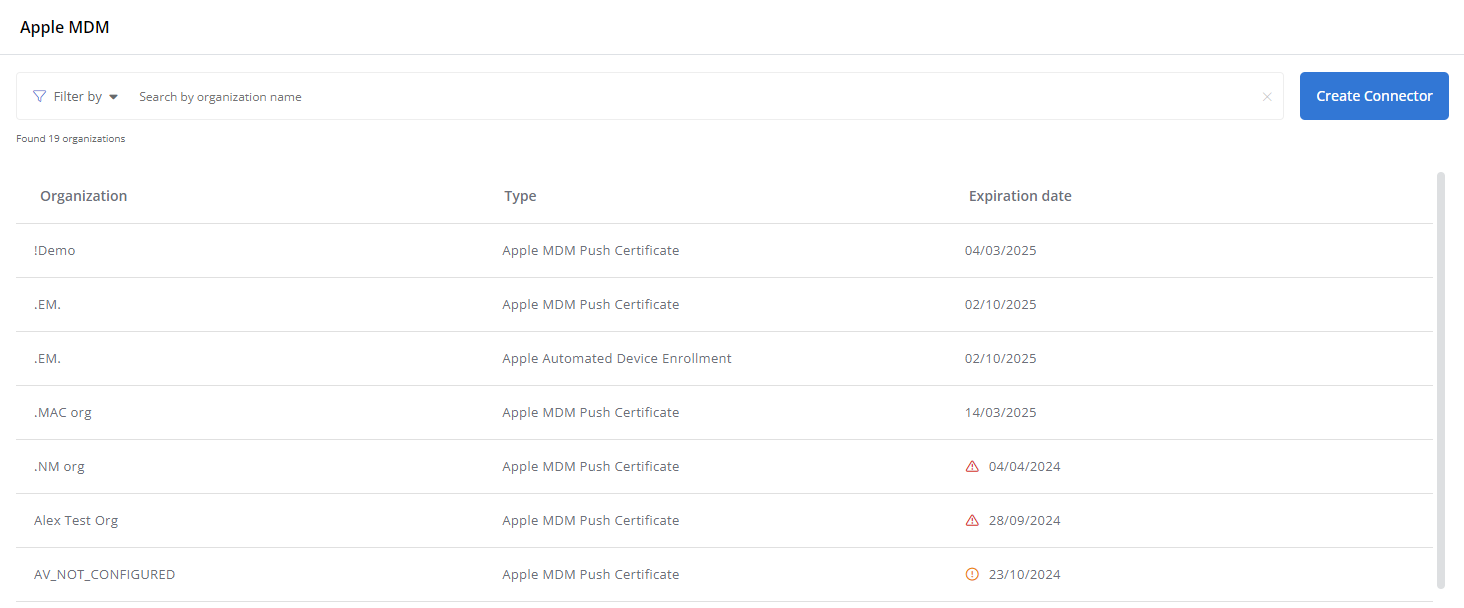
Overview
From the Apple MDM view of the Connectors page, you can view existing Kaseya MDM connectors for supported devices.
The list of connectors displays the following information:
| Column | Description |
|---|---|
| Organization | The Kaseya MDM organization to which the MDM configuration applies. |
| Type | The type of connector applied to the organization: Apple MDM Push Certificate or Apple Automated Device Enrollment. Refer to Types of Apple MDM connectors for descriptions of each. |
| Expiration date | Surfaces the date on which the certificate for the MDM connector expires. Filter by connectors that have expired  or are expiring soon or are expiring soon  using the Filter by drop-down menu. using the Filter by drop-down menu. |
To search for specific connectors, enter a partial or whole value in the search bar to filter the current list to matching records. To sort a column alphabetically or chronologically, click the column heading. To edit a connector, hover over the row and click the Edit icon  .
.
Types of Apple MDM connectors
Apple MDM Push Certificate
This connector facilitates communication between the Apple devices and the MDM server, ensuring real-time management.
Apple Automated Device Enrollment
Automated Device Enrollment (ADE) is a feature within the Apple MDM ecosystem that simplifies the deployment of Apple devices at scale. By leveraging Apple Business Manager, devices can be preconfigured with specific management settings as soon as they are powered on, bypassing manual setup steps and streamlining the onboarding process. This ensures that devices are enrolled in mobile device management (MDM) from the start, offering zero-touch deployment for organizations.
IMPORTANT You are required to add both an Apple MDM Push Certificate connector and an Apple Automated Device Enrollment connector to each organization you are configuring ADE for, starting with the push certificate.
To learn more about ADE, refer to ADE in Kaseya MDM: Enrollment.
Creating connectors
To create a new connector, perform the following steps:
- From the left navigation menu in Kaseya MDM, navigate to Integrations > Connectors.
- Click Create Connector.
- On the Create Connector page, select the Apple MDM connector type from the Type drop-down menu:
For descriptions of both connector types, refer to Types of Apple MDM connectors.
NOTE The Apple MDM Push Certificate connector must first be configured for an organization before the Apple Automated Device Enrollment connector can be configured for that organization.
 Apple MDM Push Certificate
-
With Apple MDM Push Certificate selected as the connector type, select the organization with which the new device will be associated.
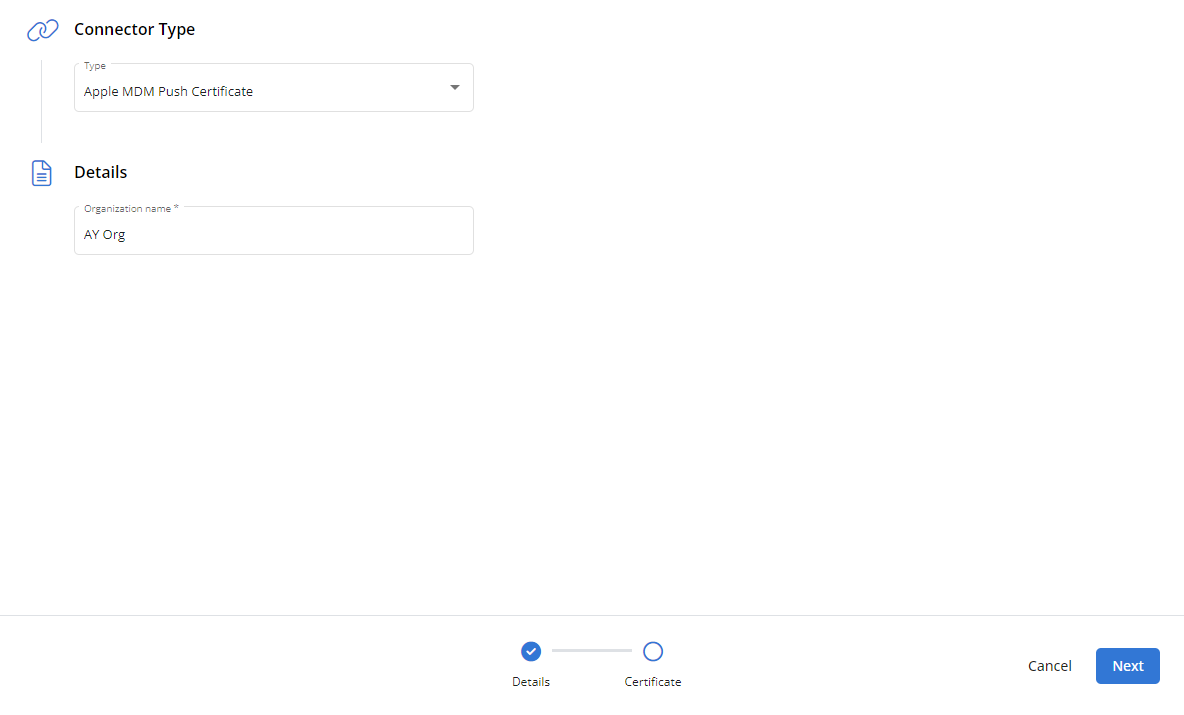
- Click Next.
- In the Download CSR File section, click Download CSR. Kaseya MDM will transfer a Certificate Signing Request (CSR) file named CertificateSigningRequest.plist to the default download location on your computer.
- In the Create the Apple Push Certificate section, click Go to Apple portal.
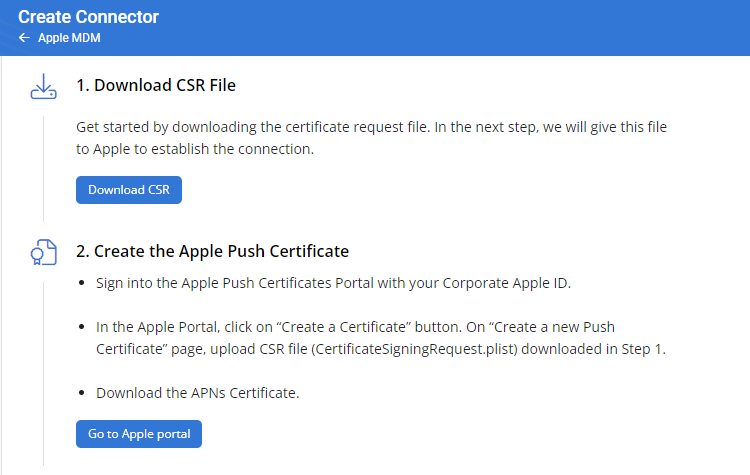
- Without closing the Create Connector page, you'll create a push certificate via the Apple portal and return to Kaseya MDM to upload the certificate file. For step-by-step instructions on this process, refer to Create a push certificate in Kaseya MDM: Enrollment.
Apple Automated Device Enrollment
- With Apple Automated Device Enrollment selected as the connector type, select the organization and site associated with the devices you wish to automatically enroll in Kaseya MDM.
- Select the specific agent group in which the devices will be automatically enrolled.
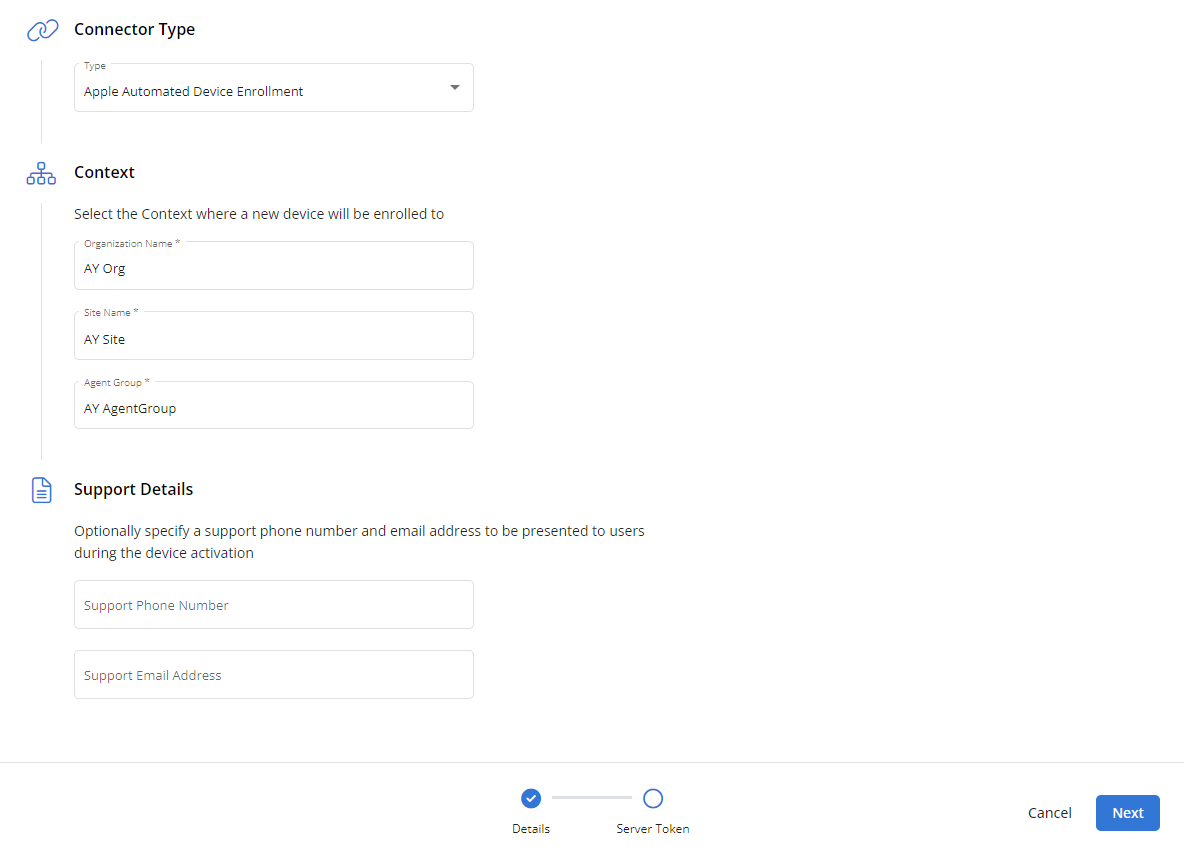
- Optionally, enter a phone number and/or email address at which your support team can be reached, which users will see during device activation.
- Click Next.
- Click Download Public Key. Kaseya MDM will transfer a Privacy Enhanced Mail (PEM) file named ABM_Public_Key.pem to the default download location on your computer.
- In the Generate New Server Token section, click Go to Apple Business Manager.
- Without closing the Create Connector page, you'll upload the public key to Apple Business Manager and return to Kaseya MDM to upload a server token. For step-by-step instructions on this process, refer to Configure Automated Device Enrollment (ADE) in Kaseya MDM: Enrollment.
NOTE The Organization Name field displays an error message if the selected organization is missing an Apple MDM Push Certificate connector, which you must configure first. Refer to the preceding section for instructions.


