Kaseya MDM: MDM profiles
 Security and navigation
NAVIGATION Administration > Configuration > Profiles > New Profile > Android MDM Applications
NAVIGATION Administration > Configuration > Profiles > New Profile > Android MDM Networking
NAVIGATION Administration > Configuration > Profiles > New Profile > Android MDM Restrictions
NAVIGATION Administration > Configuration > Profiles > New Profile > Android MDM Security
NAVIGATION Administration > Configuration > Profiles > New Profile > Android MDM System Configuration
NAVIGATION Administration > Configuration > Profiles > New Profile > Apple MDM Applications (Device Configuration) profile type
NAVIGATION Administration > Configuration > Profiles > New Profile > Apple MDM Restrictions (Device Configuration) profile type
NAVIGATION Administration > Configuration > Profiles > New Profile > Apple MDM Networking (Device Configuration) profile type
NAVIGATION Administration > Configuration > Profiles > New Profile > Apple MDM Security (Device Configuration) profile type
NAVIGATION Administration > Configuration > Profiles > New Profile > Apple MDM System Configuration (Device Configuration) profile type
NAVIGATION Administration > Configuration > Profiles > New Profile > Location Tracking (Monitoring) profile type
NAVIGATION Administration > Configuration > Policies
PERMISSIONS Administrator
With MDM configuration profiles, you have the ability to automate the setup of mobile device user accounts, networking settings, security policies, and hardware, operating system, and application restrictions from the moment the device is enrolled. This powerful feature eliminates the need for administrators to manually onboard every MDM endpoint in your environment, saving you time and ensuring that all devices are configured consistently.
This article provides an overview of MDM configuration profiles and describes the process to create and deploy them.
NOTE To learn how to enroll a device in MDM, refer to Kaseya MDM: Enrollment.
Overview
With MDM configuration profiles, you can create predefined setup templates for supported Apple devices and associate them with management policies. When Kaseya MDM detects a client that meets the criteria of one or more of the associated policy rules, it will automatically apply the corresponding profile to the device via the Apple Push Notification Service.
Supported hardware
Mobile devices (iPad and iPhone) support management via configuration profiles.
Capabilities
MDM configuration profiles support the following applications and system settings:
Android MDM profiles
| Category | Description | Applications and settings | Associated Profile |
|---|---|---|---|
| Applications | Manage and install Google Play applications on Android devices. | App deployment and updates, roles, and managed configuration settings. | Android MDM Applications profile |
| Networking | Configure network settings including Wi-Fi, VPN, proxy, and connectivity management for Android devices. |
WiFi, certificates, DNS, radio state, proxy, VPN, etc. |
Android MDM Networking profile |
| Restrictions | Configure device restrictions including app installation, account management, Bluetooth, camera, microphone, and other device capabilities. |
Bluetooth, camera, location sharing, user creation, authentication, SMS, outgoing calls, etc. |
Android MDM Restrictions profile |
| Security | Control sensitive security-related device settings. |
Accessibility, certificate keys, lock screen, password policies, policy enforcement rules, profile management, security configuration. |
Android MDM Security profile |
| System Configuration | Enable or disable interface elements, manage login behavior, control system updates. |
Kiosk mode configuration, location settings, OS update settings, support information, system configuration. |
Android MDM System Configuration profile |
Apple MDM profiles
| Category | Description | Applications and settings | Associated Profile |
|---|---|---|---|
| Applications | Deploy apps to devices automatically, automate app updates, and track installation and update statuses for managed apps. | App deployment, updates, and update status | Apple MDM Applications profile |
| Restrictions | Manage hardware, operating system, and application restrictions. |
Bluetooth, camera, Game Center App Store, lock screen, user creation, startup, authentication |
Apple MDM Restrictions profile |
| Networking | Manage network configuration, including WiFi, Ethernet, and VPNs. |
WiFi, Ethernet, cellular, firewall, DNS, proxy, VPN, AirPlay, AirPrint |
Apple MDM Networking profile |
| Security | Control sensitive security-related device settings. |
Authentication, certificates, parental controls, encryption, passcodes |
Apple MDM Security profile |
| System Configuration | Enable or disable interface elements, manage login behavior, control system updates. |
Login behavior, user experience, preferences, software catalog |
Apple MDM System Configuration profile |
| Location Tracking | Track the location of managed iOS and iPadOS devices. | Location settings | Location Tracking profiles |
Android MDM profile configuration settings
Android MDM Applications profile
The Android MDM Applications profile allows you to provision, install, and update software from the Google Play Store on Android devices. Applications added to this profile will be installed and kept up to date on targeted devices based on your configuration settings.
NOTE Devices are checked for uninstalled/out of date apps on a 24 hour cycle, so if a user uninstalls and app manually it will be reinstalled within a day.
To configure this profile, follow the instructions below:
- In Google Play Applications, click Add Application in the upper right.
- In the Add Application pop-up, select the appropriate Android Enterprise connector and click Next. This will load the Google Play portal.
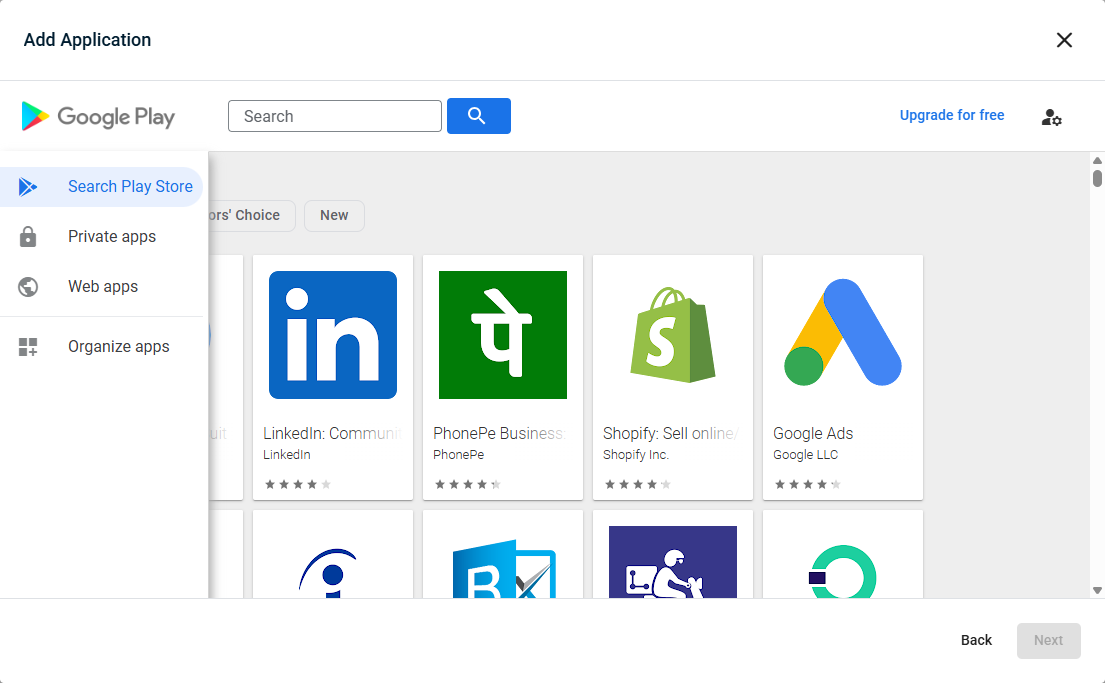
- In the Google Play portal, you can access the following areas:
- Search Play Store: Navigate the play store to select from the vast array of Google reviewed applications.
- Private apps: Upload private apps developed just for your organization. The upload must be in .apk or .aab format. Learn more here.
- Web apps: Specify websites that you want users to be able to launch from their home screen as if they were apps. Learn more here.
- Organize apps: Create collections of apps that you can display in the managed Play Store app on managed Android devices. Learn more here.
- In the Google Play portal, you can access the following areas:
- Once you've found or uploaded an app you want to add to the profile, click Select on the app page.
- Under General Settings, select the Install Type you want to apply to that app from the following options:
- Force Installed: Auto-installs, cannot be removed.
- Pre-installed: Auto-installs, user can remove.
- Available: User can install manually.
- Blocked: Blocks install, uninstalls if present.
- Kiosk: Auto-installs as locked home screen.
- Next, select the Auto Update mode for that app from the following options:
- Default: Auto-updates when the device is idle.
- Postponed: Delays auto-updates for 90 days.
- High Priority: Updates immediately when available.
- Under Roles, select the apps Role from the following options:
- Mobile Threat Defense (MTD) / Endpoint Detection & Response (EDR)
- System Health Monitoring
- Under Managed Configuration, select which managed configuration for that app you wish to use, if applicable.
- When finished, click Add. The app will now be added to the list of apps on the right.
- Repeat steps one through eight for each app you wish to add to the profile.
- When finished adding apps, click Create.
Android MDM Networking profile
The Android MDM Networking profile allows you to configure network settings including Wi-Fi, VPN, proxy, and connectivity management for Android devices.
NOTE There is a Learn more link at the top of the page that links back to Android developer documentation.
To configure this profile:
- Click Add Configuration in the upper right.
- Configure the Network Configuration section as desired.
NOTE Every configuration setting has more information when hovering over the contextual smart tip icon next to it, and clicking the variable name next to the setting will open a link to Android developer documentation referencing that setting.
- Once finished configuring the profile, click Create in order to save your changes and create the profile.
Android MDM Restrictions profile
The Android MDM Restrictions profile allows you to configure device restrictions including app installation, account management, Bluetooth, camera, microphone, and other device capabilities.
NOTE There is a Learn more link at the top of the page that links back to Android developer documentation.
To configure this profile:
- Click Add Configuration in the upper right.
- Configure the Restrictions section as desired.
NOTE Every configuration setting has more information when hovering over the contextual smart tip icon next to it, and clicking the variable name next to the setting will open a link to Android developer documentation referencing that setting.
- Once finished configuring the profile, click Create in order to save your changes and create the profile.
Android MDM Security profile
The Android MDM Security profile allows you to configure security settings and certificates for Android devices.
For example, this profile allows you to configure, among other things:
- Password requirements
- Lock screen settings
- Certificate and private key management
- Device security and encryption settings
NOTE There is a Learn more link at the top of each section that links back to Android developer documentation.
To configure this profile:
- Using the search bar or scrolling through the list manually, select which section you wish to configure using the list on the left.
- Click Add Configuration in the upper right.
- Configure the section as desired.
NOTE Every configuration setting has more information when hovering over the contextual smart tip icon next to it, and clicking the variable name next to the setting will open a link to Android developer documentation referencing that setting.
- Repeat the process if you want to add more sections to the profile.
- Once finished configuring the profile, click Create in order to save your changes and create the profile.
NOTE You can have multiple security configurations in one profile.
Android MDM System Configuration profile
The Android MDM System Configuration profile allows you to configure system settings for Android devices.
For example, this profile allows you to configure, among other things:
- Kiosk mode configuration settings
- Location settings
- OS update policy
- Power and display settings
NOTE There is a Learn more link at the top of each section that links back to Android developer documentation.
To configure this profile:
- Using the search bar or scrolling through the list manually, select which section you wish to configure using the list on the left
- Click Add Configuration in the upper right.
- Configure the section as desired.
NOTE Every configuration setting has more information when hovering over the contextual smart tip icon next to it, and clicking the variable name next to the setting will open a link to Android developer documentation referencing that setting.
- Repeat the process if you want to add more sections to the profile.
- Click Create to safe the configuration and create the profile.
NOTE You can have multiple system configurations in one profile.
Apple MDM profile configuration settings
Apple MDM Applications profile
The Apple MDM Applications profile allows you to provision, install, and update software from the Apple App Store, Apple Apps and Books, and user configured custom applications through MDM on iOS, iPadOS, and macOS devices. Applications added to this profile will be installed and kept up to date on targeted devices.
When choosing between whether to use the App Store, Apps and Books, or Custom Applications configuration, consider the following:
- Installing apps using the App Store configuration requires an active App Store account on the device from an unmanaged Apple ID account.
- Installing apps using the Apps and Books configuration does not require an active App Store account, and can be used with a managed Apple ID account present on the device. Additionally, it will not show any prompts users on supervised devices.
- In order to start using Apps and Books applications, applications must first be added to Apple Business Manager, even if the apps being installed are free.
- Custom Applications will require a more in-depth configuration and may require troubleshooting to work properly.
NOTE Devices are checked for uninstalled/out of date apps on a 24 hour cycle, so if a user uninstalls and app manually it will be reinstalled within a day.
NOTE This profile will work with non-supervised devices.
To configure this profile, follow the instructions below depending on which configuration you want to apply:
App Store
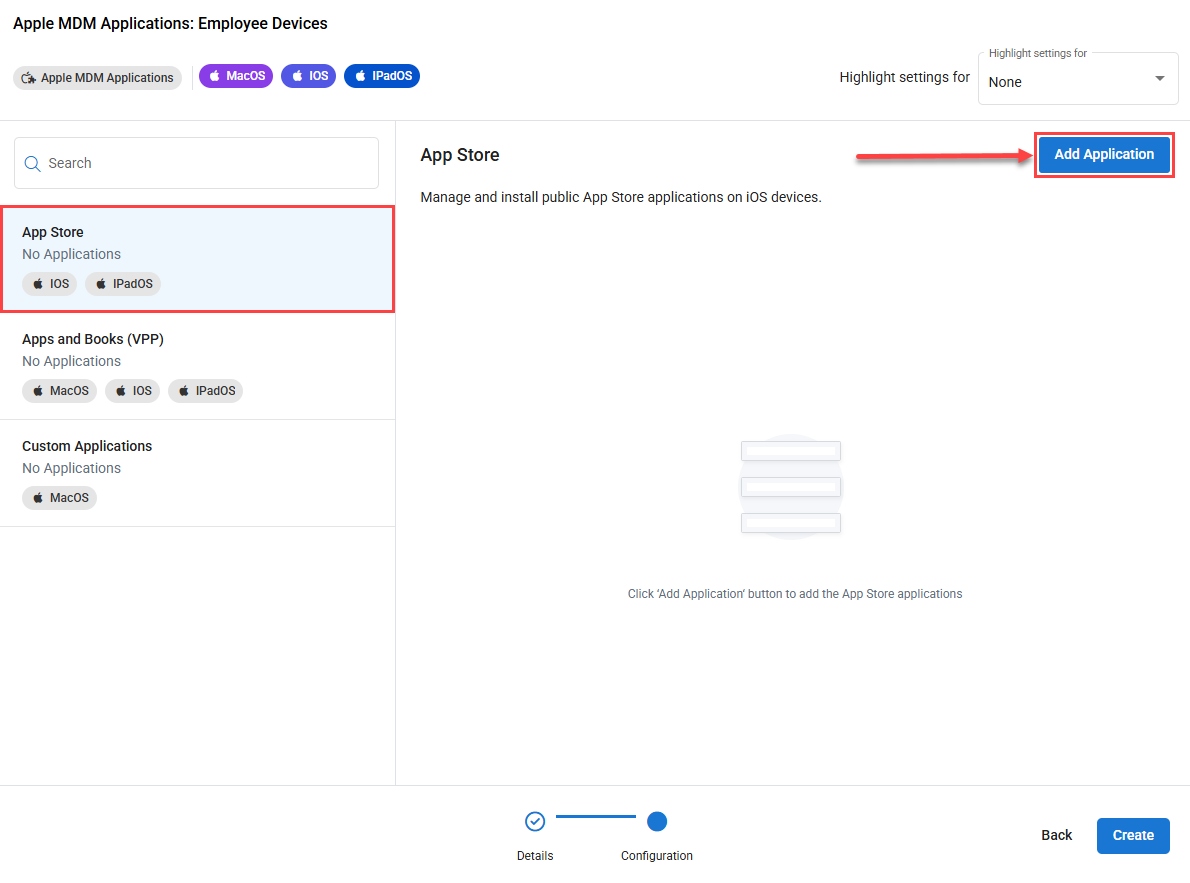
- Select App Store from the menu on the left.
- Click Add Application in the upper right.
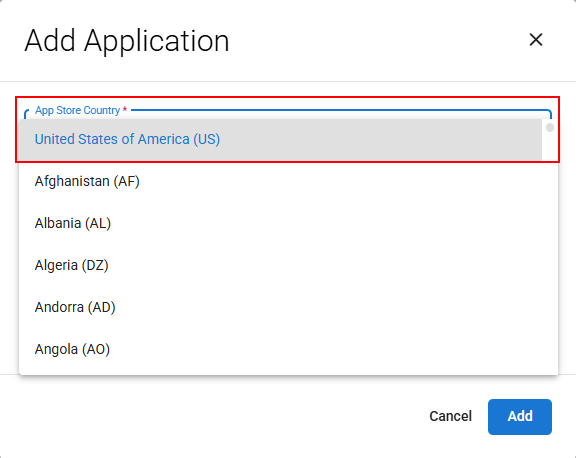
- Use the drop-down for App Store Country to select the country where the requested app resides.
- Type in the Application field to search the App Store. Click to select the application you wish to configure.
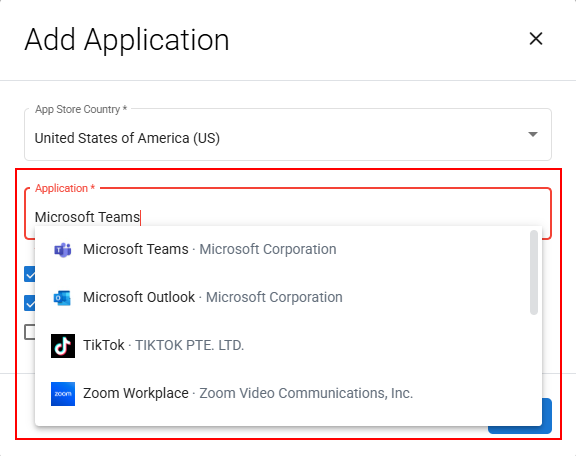
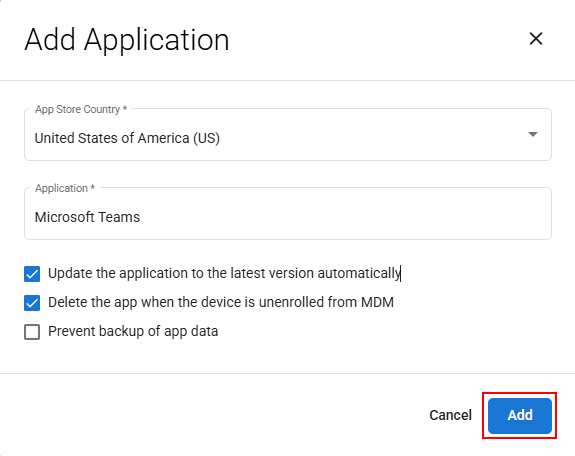
- For the selected application, check or uncheck the necessary boxes to choose which of the following settings you want applied:
- Update the application to the latest version automatically: Checking this option will keep the app up to date on targeted devices.
- Delete the app when the device is unenrolled from MDM: Checking this option will force the application to be removed from the any targeted devices if they are unenrolled from MDM.
- Prevent the backup of app data: Checking this option will omit the app and app data from being backed up when a phone is backed up with a service such as iCloud
- Click Add to add the app configuration to the profile.
-
Repeat this process for all apps you want to add to the profile, and then click Create to save the profile.
Apps and Books
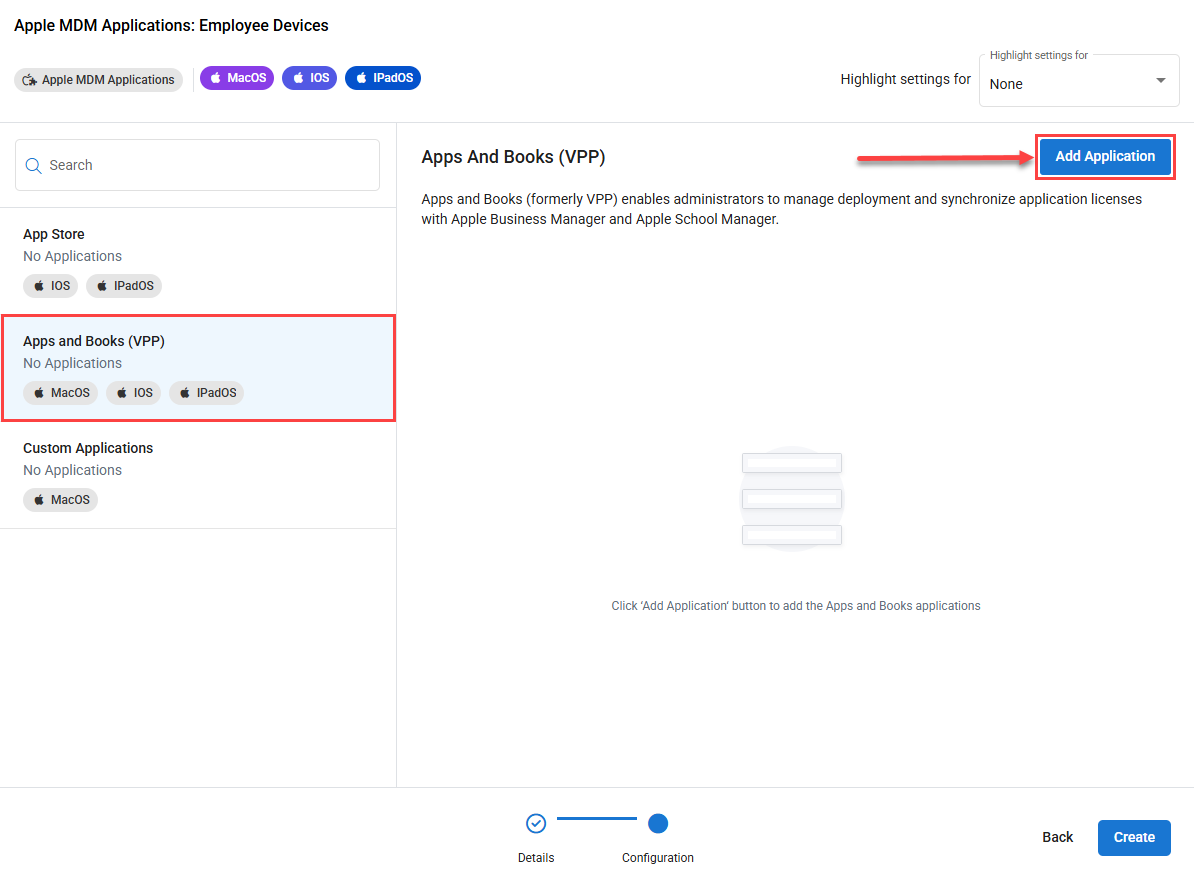
- Select Apps and Books from the menu on the left.
- Click Add Application in the upper right.
- Use the Connector dropdown to select your connector. Refer to Apps and Books if one needs to be configured.
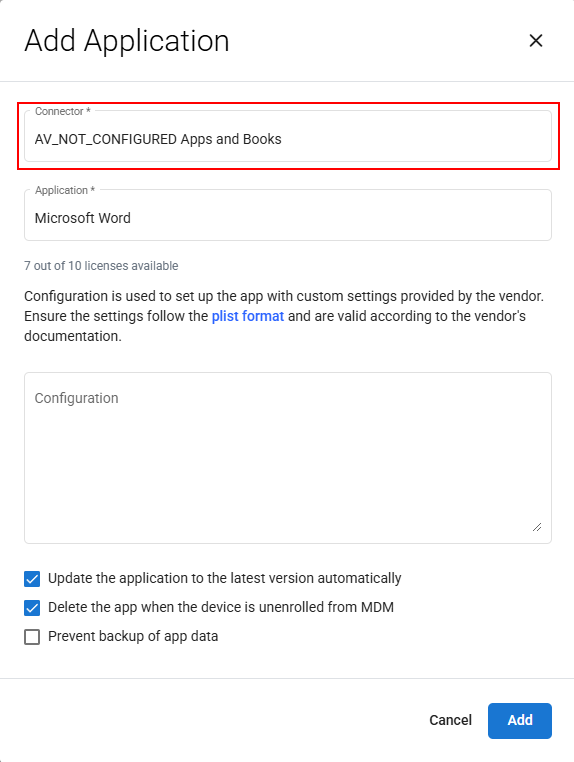
- Select one of the applications from the Application dropdown.
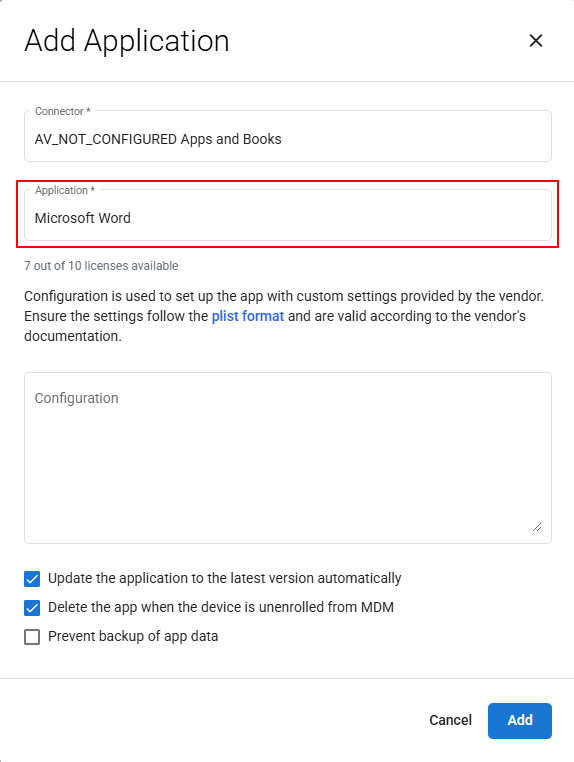
- Enter in the application configuration settings in the Configuration field. Refer to the application vendor's documentation for directions on configuring these settings in the proper format.
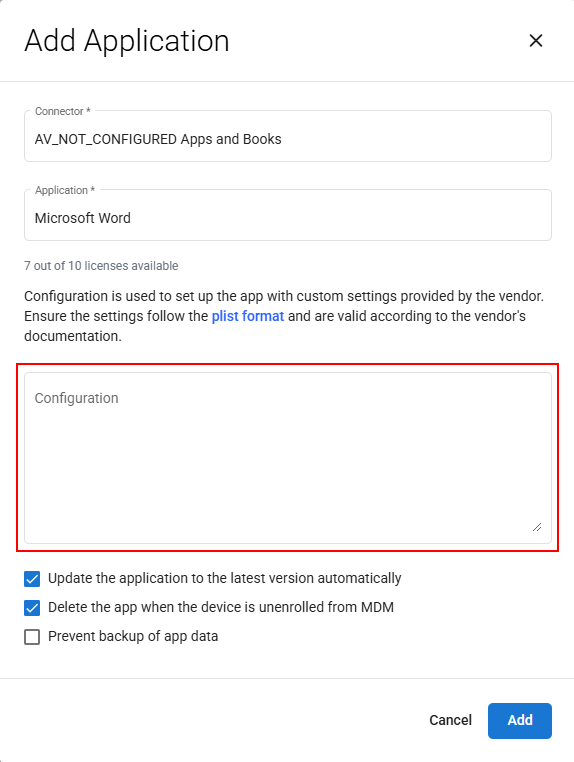
- For the selected application, check or uncheck the necessary boxes to choose which of the following settings you want applied:
- Update the application to the latest version automatically: Checking this option will keep the app up to date on targeted devices.
- Delete the app when the device is unenrolled from MDM: Checking this option will force the application to be removed from the any targeted devices if they are unenrolled from MDM.
- Prevent the backup of app data: Checking this option will omit the app and app data from being backed up when a phone is backed up with a service such as iCloud
- Click Add to add the app configuration to the profile.
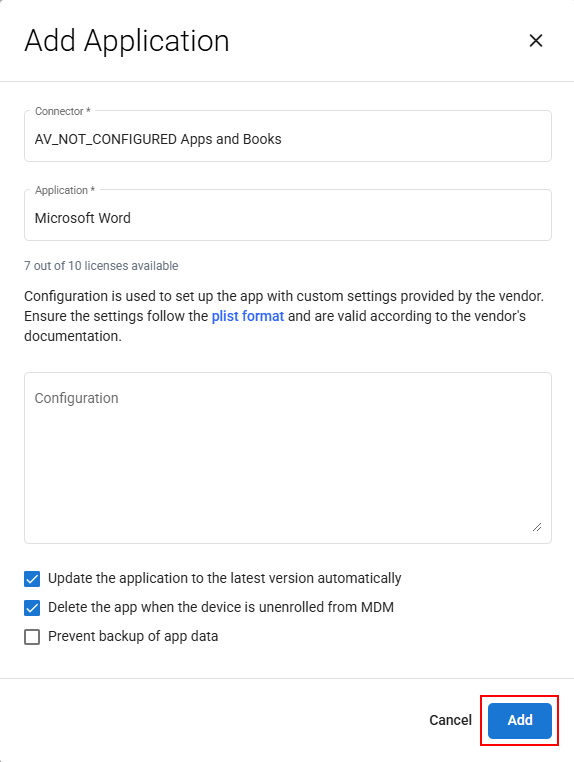
-
Repeat this process for all applications you want to add to the profile, and then click Create to save the profile.
Custom Applications
- Select Custom Applications from the menu on the left.
- Click Add Application in the upper right.
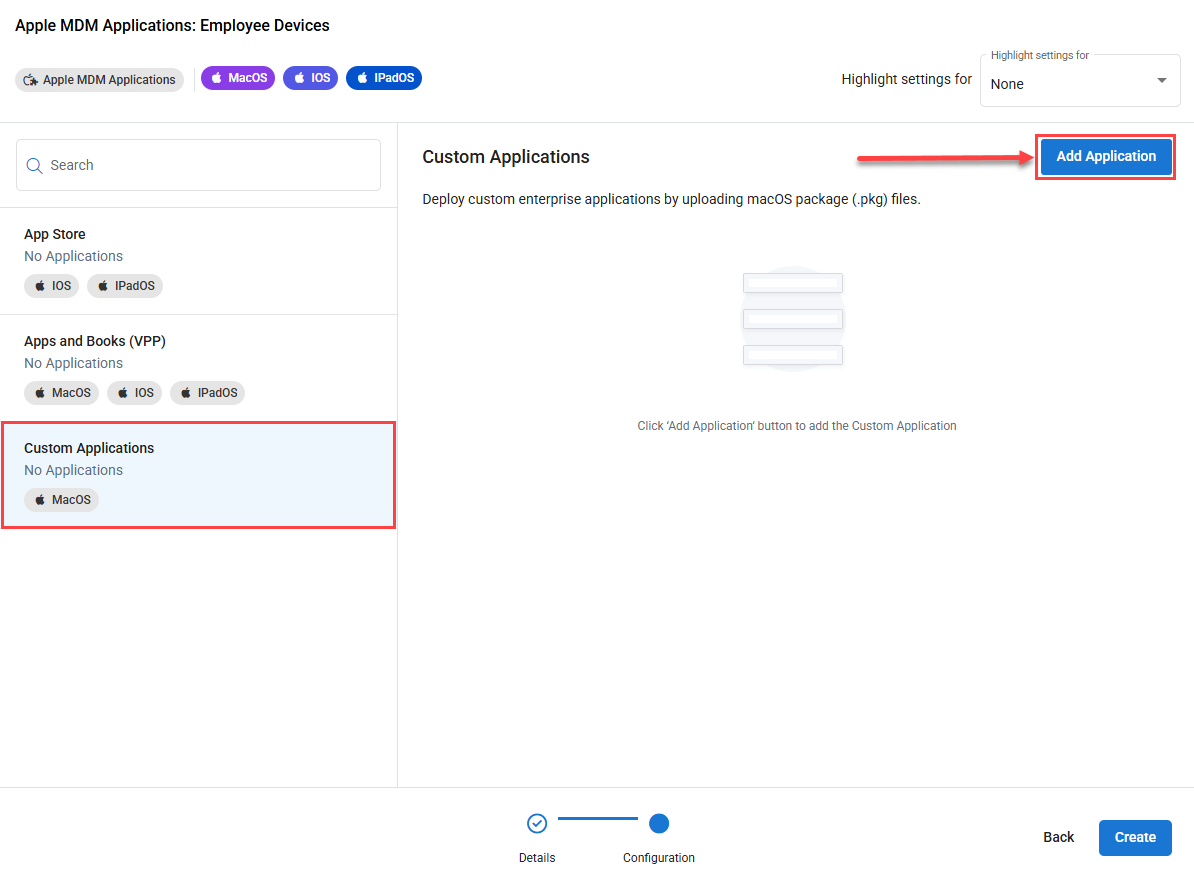
- In the File Link section of the Add Application window, enter the link to the application's PKG file, and click Next.
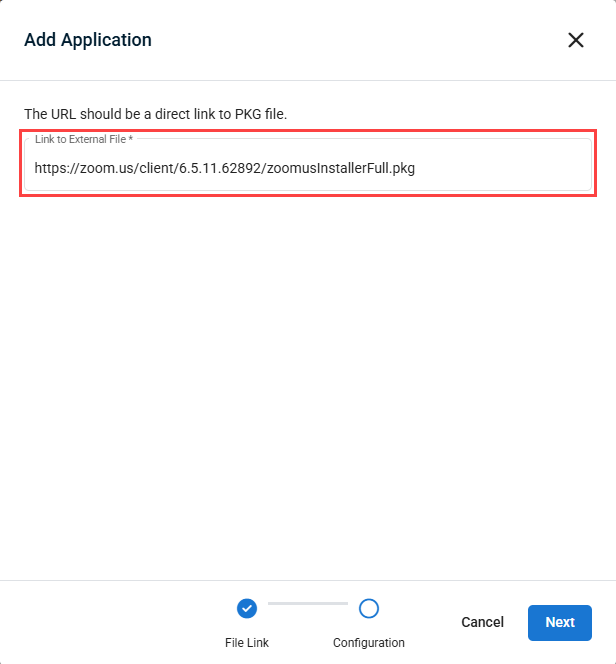
NOTE If the link to the file is inaccessible or incorrectly formatted, you will receive a warning and will not be able to configure with the configuration.
- After the application link has been verified, you will be asked to confirm the Name, Bundle ID and Version of the application.
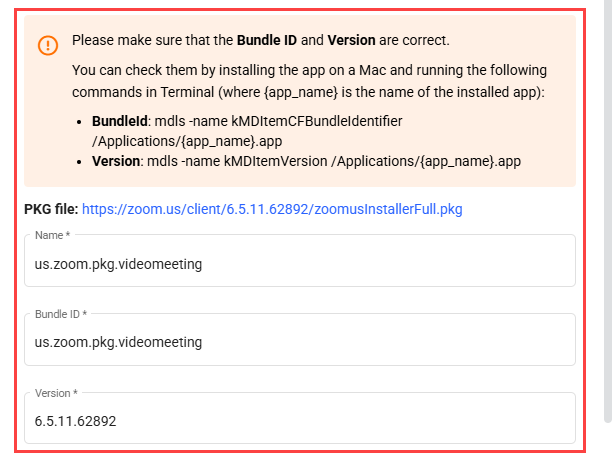
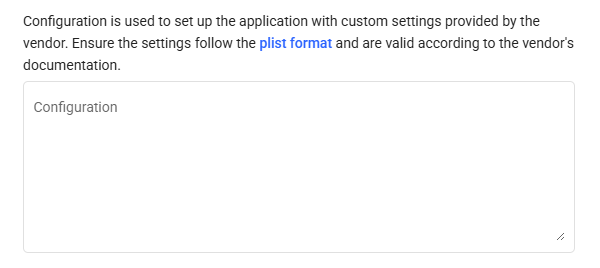
- If you want to define preconfigured settings during deployment, enter those settings in the Configuration text box in the plist format. Refer to the application vendor's documentation for details.
- Select whether you want to delete the application when the device is unenrolled from MDM, whether you want to prevent the backup of application data, and whether you agree with the Kaseya Master Agreement.
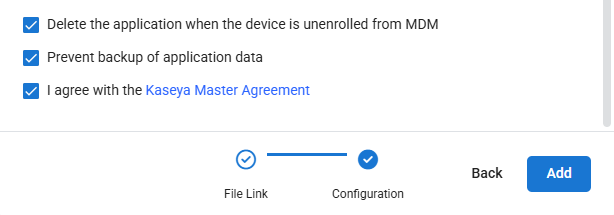
IMPORTANT You must agree with the Kaseya Master Agreement in order to save a custom application.
- When finished, click Add to save the custom application to the profile.
- Repeat this process for all custom applications you want to add to the profile, and then click Create to save the profile.
Custom Application Updates
When a new version of an application you've added to Custom Applications is available, follow the steps below to ensure the update is available to your end users.
- Navigate to Configuration > Profiles and edit the Apple MDM Applications profile that contains the custom app.
- Update the profile details if needed, then click Next.
- Select the Custom Applications configuration, and hover over the application you want to update and click the Edit button.
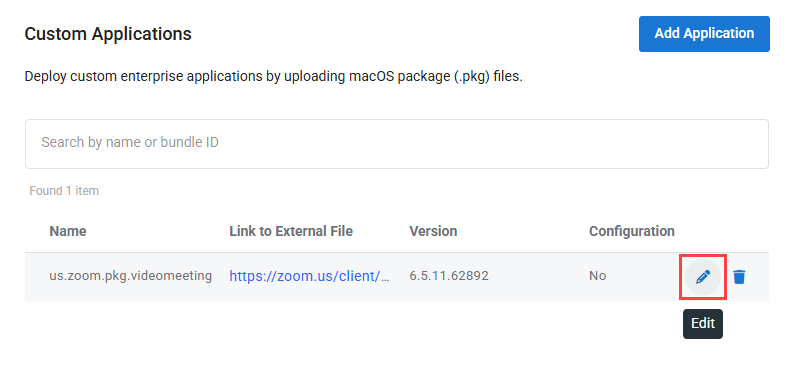
- In the File Link section of the Edit Application window, replace the installer link with the link to the new PKG file and click Next.
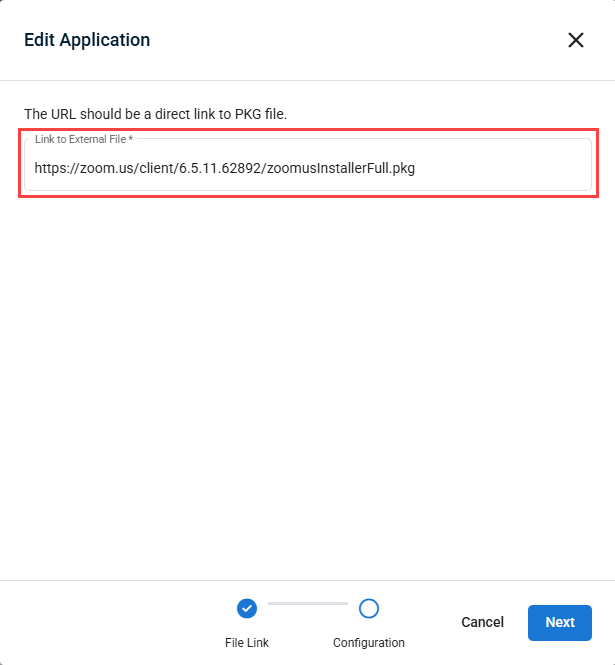
- Confirm the Name, Bundle ID and new Version of the application are correct.
- Update the rest of the configuration settings if needed, then click Save to close the Edit Application window.
- Repeat steps 3 through 6 for each application in the profile that needs to be updated.
- Click Save on the profile configuration page to confirm your changes.
Application installation behavior
When using the Apple MDM Applications profile to deploy applications, different conditions will impact the installation process. Please see the below table for details.
| Enrollment Type | Application Type | Known App (previously installed) | Unknown App (not installed before) | User-installed app (outside of MDM) |
|---|---|---|---|---|
| Supervised | App Store application | Installs silently in the background. | Installs with prompt if device is unlocked; stays uninstalled if locked. | Silently becomes managed. |
| Apps And Books (VPP) application | Installs silently (no App Store account needed). | Installs silently (no App Store account needed). | Silently becomes managed. | |
| Non-Supervised | App Store application | Installs with user prompt. If rejected, application stays uninstalled. | Installs with user prompt. If rejected, application stays uninstalled. | Becomes managed with user prompt. If rejected, stays unmanaged |
| Apps And Books (VPP) application | Installs with user prompt. If rejected, application stays uninstalled. | Installs with user prompt. If rejected, application stays uninstalled. | Becomes managed with user prompt. If rejected, stays unmanaged |
Status Definitions
ManagedButUninstalled: The app was managed, but the device user deleted it. If the device user installs the app again, the app will be managed.UserRejected: Indicates the device user canceled a managed app installation.ManagementRejected: Indicates the device user tapped Cancel when prompted to convert the app to managed.
Key Takeaways
- Supervised devices allow for background installation and management of apps without user interaction, but only for VPP and previously installed Appstore Apps.
- Non-supervised devices require user approval for installation and management.
- VPP apps benefit from silent installation when possible, avoiding App Store authentication.
- If an app is installed by a user, it can be managed automatically in supervised scenarios but requires user confirmation in non-supervised cases.
- Full silent install is available only for Supervised devices with VPP.
Apple MDM Restrictions profile
The Apple MDM Restrictions profile allows you to allow or restrict functions on iOS, iPadOS, and macOS devices.
To configure this profile:
-
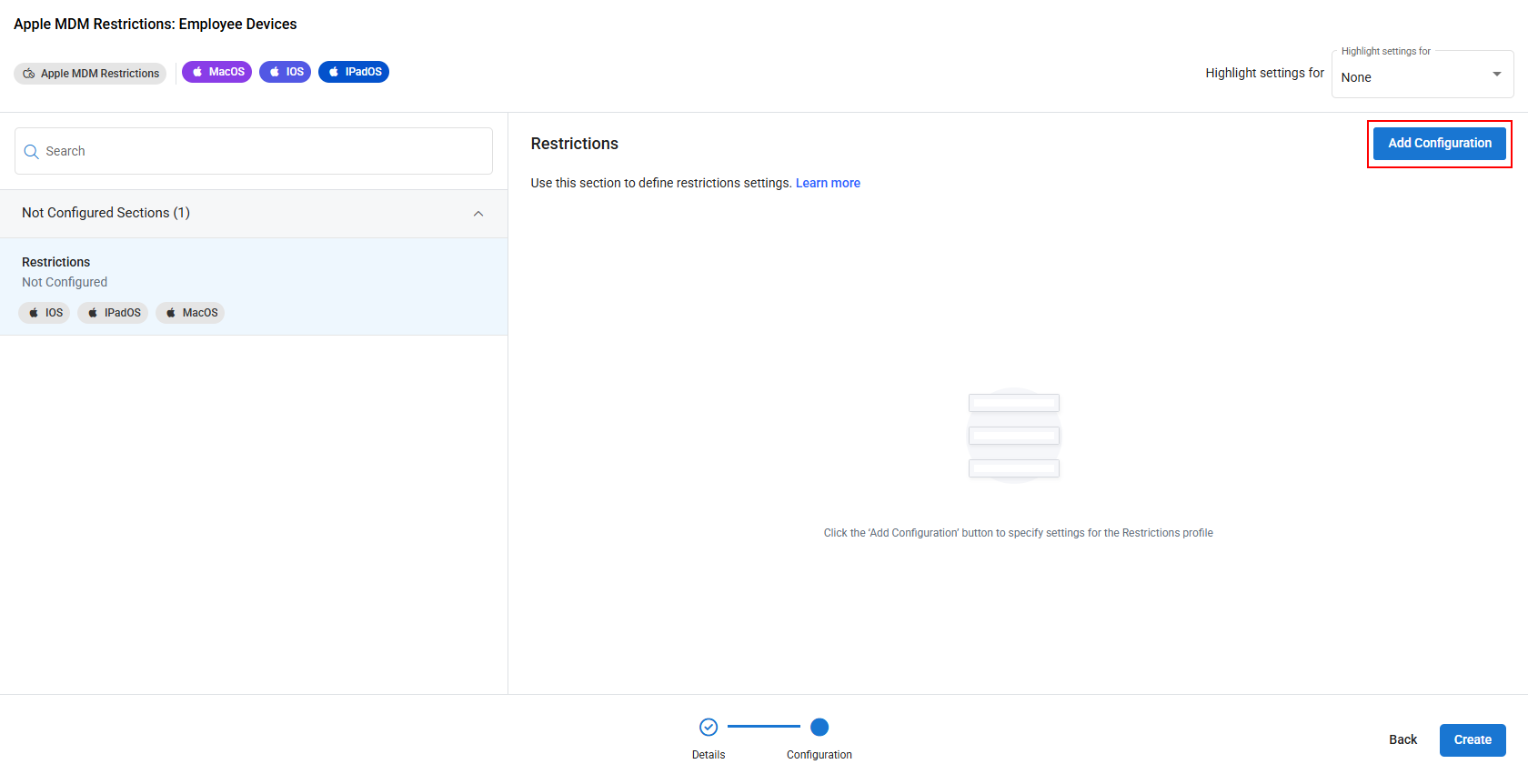
Click Add Configuration in the upper right.
-
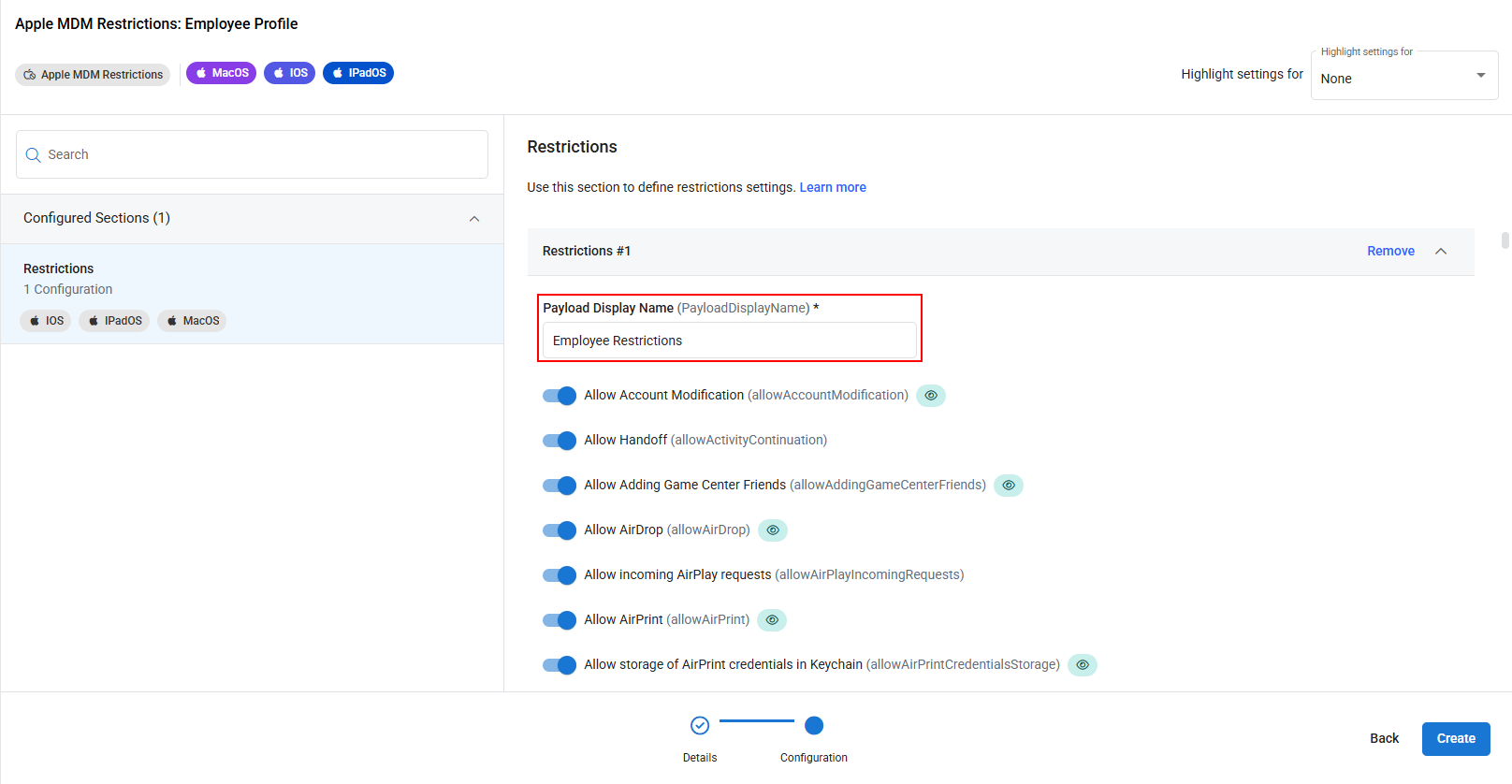
Change the Payload Display Name if desired.
-
Select which items you wish to be allowed or restricted by clicking the sliders. Items that will only work on supervised devices will have an eye icon next to their label.
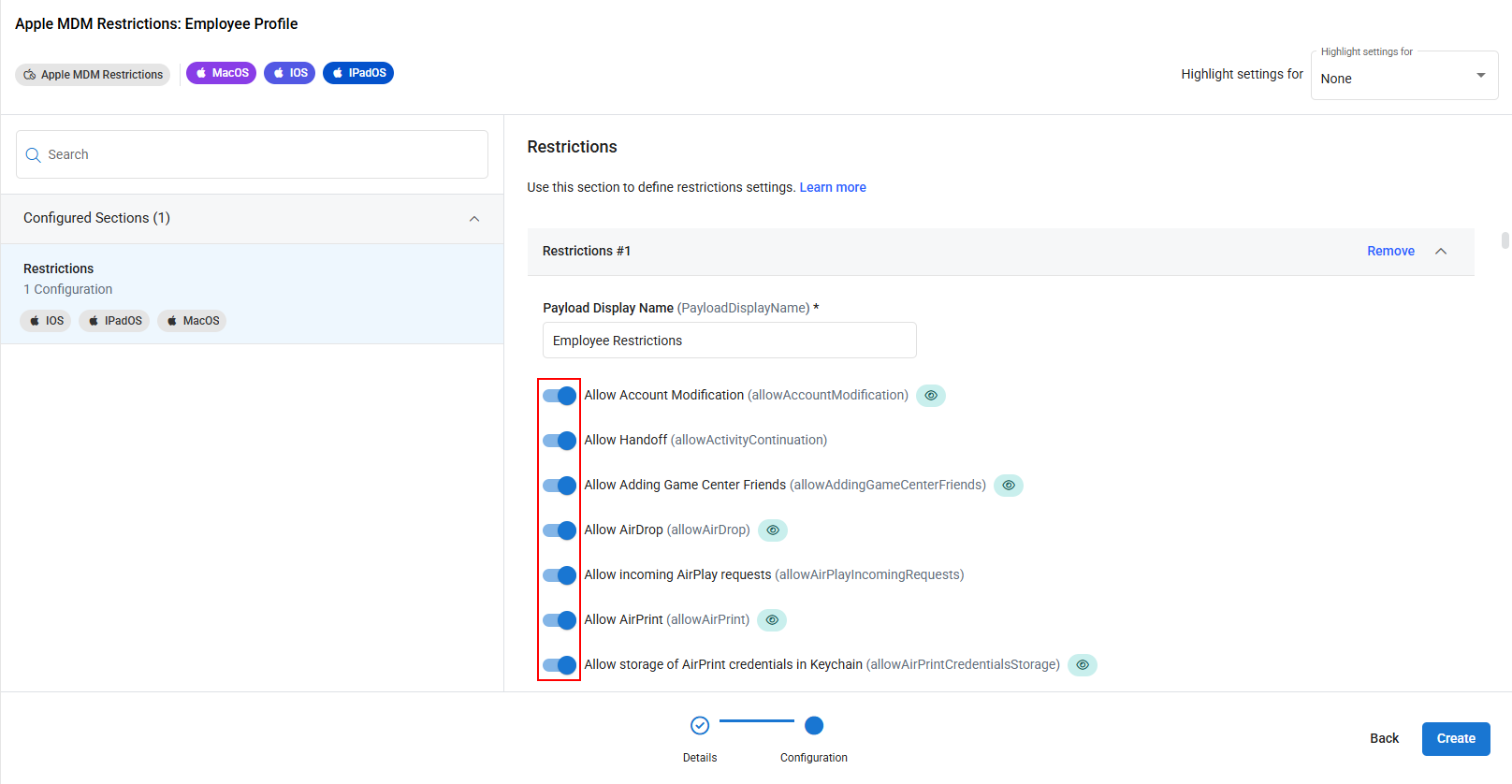
NOTE To learn more about restrictions settings, click the Learn more link at the top of the configuration.

-
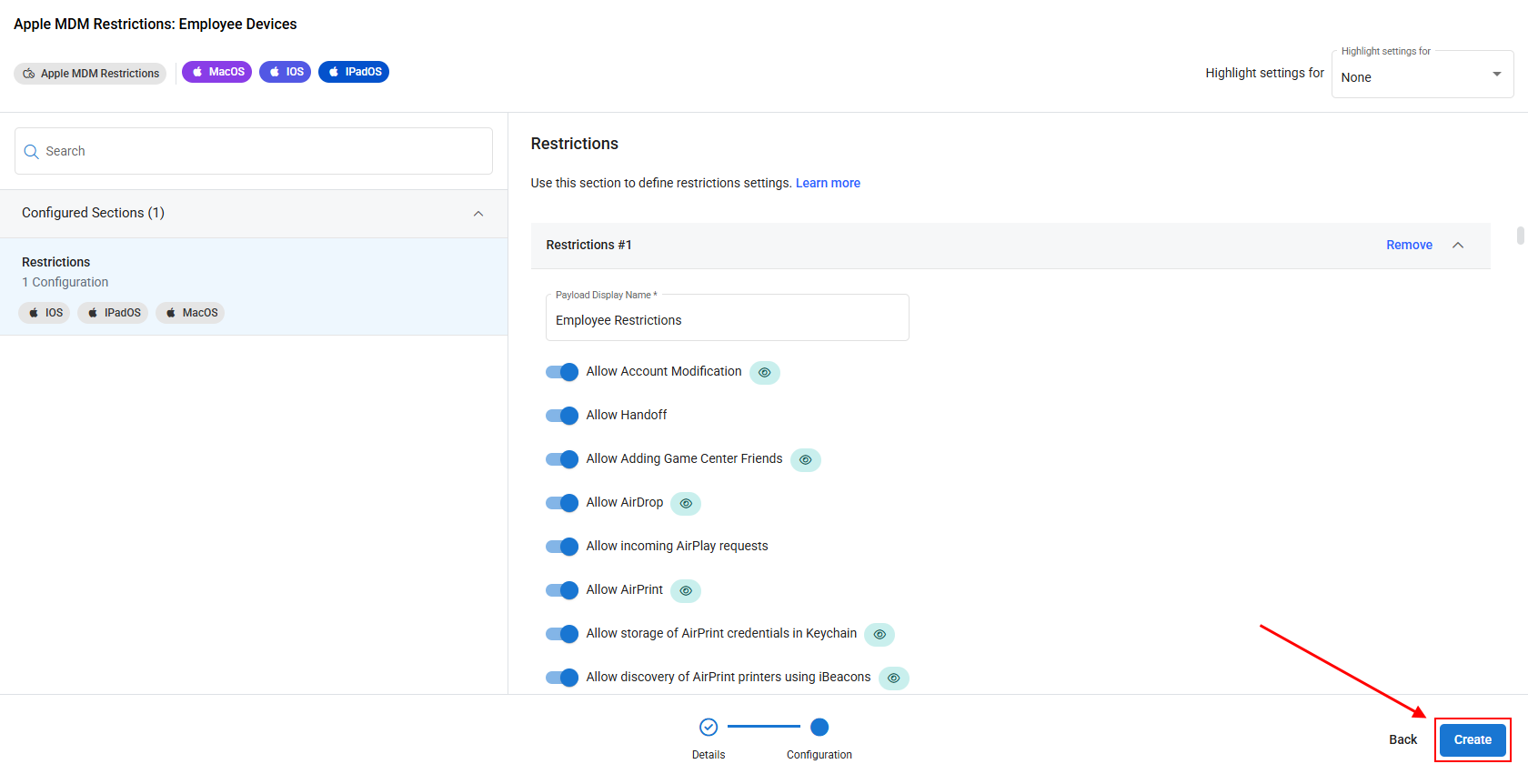
Once finished configuring the profile, click Create in order to save your changes and create the profile.
Apple MDM Networking profile
The Apple MDM Networking profile allows you to configure network settings for the different types of network interfaces that macOS, iOS, and iPadOS can connect to.
For each interface, you can configure various settings based on the interface type. For example, the below image is from the 802.1X: First Active Ethernet configuration.
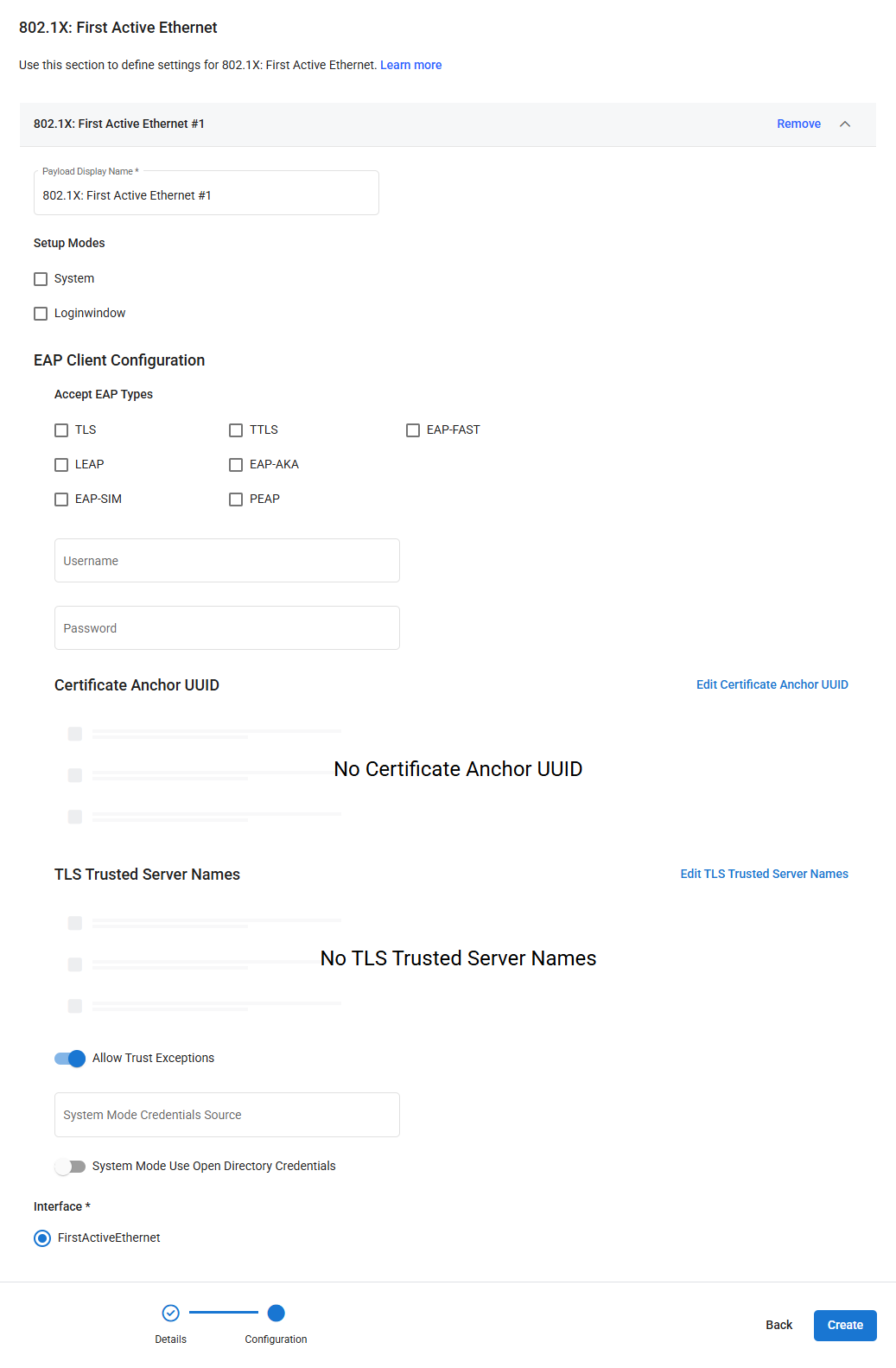
NOTE There is a Learn more link at the top of each section that links back to Apple developer documentation on the device management profile for that interface. 
To configure this profile:
-
Using the search bar or scrolling through the list manually, select which section you wish to configure using the list on the left.
-
Click Add Configuration in the upper right.
-
Configure the section as desired.
-
Repeat the process if you want to add more sections to the profile.
-
Once finished configuring the profile, click Create in order to save your changes and create the profile.
NOTE You can have multiple network interface configurations in one profile.
VPN vendor configuration dictionary
When configuring a VPN interface, you can define keys and values for custom VPNs in a vendor-specific configuration dictionary. This allows configuration of third-party VPN connections, such as Wireshark.
In order to configure this dictionary to set up a custom VPN connection, follow the steps below:
- Edit an existing Apple MDM Networking profile, or create a new one.
- In the Configuration screen of that profile, add a VPN configuration or select the existing one.
- In the Type (VPNType) dropdown of the configuration, select VPN. This will enable the Vendor Configuration Dictionary.
- Scroll down to the Vendor Configuration Dictionary, and click Edit Vendor Configuration Dictionary.
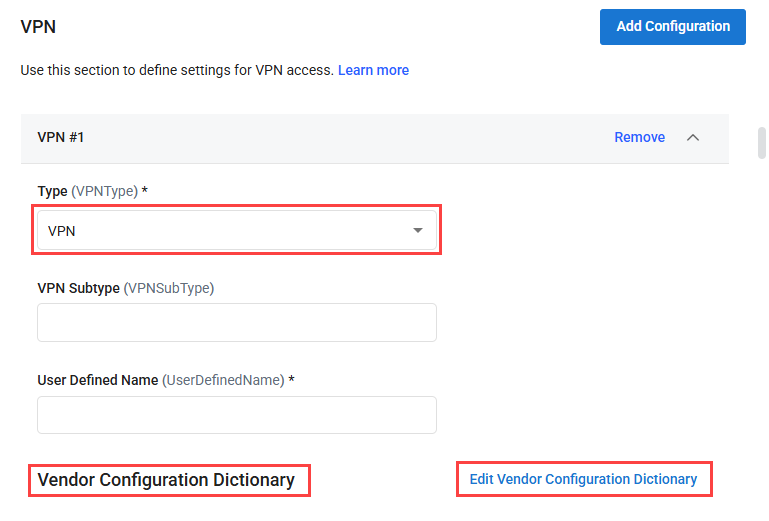
- Enter in the Key and Value that corresponds to your custom VPN connection, clicking Add Vendor Configuration Dictionary if you want to add more than one, and click Save when done.
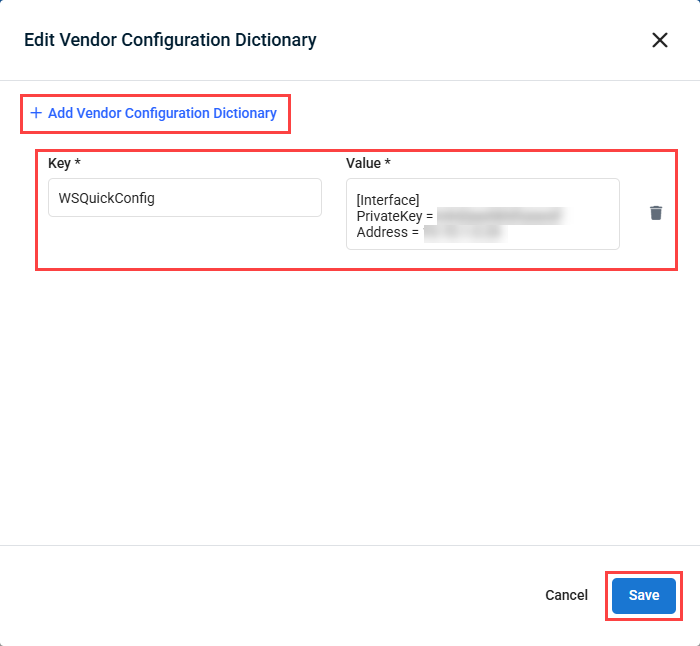
Refer to your VPN provider's documentation for details on what needs to be entered in the Key and Value fields in this dictionary for it to work properly.
Apple MDM Security profile
The Apple MDM Security profile allows you to configure security settings and certificates for macOS, iOS and iPadOS devices.
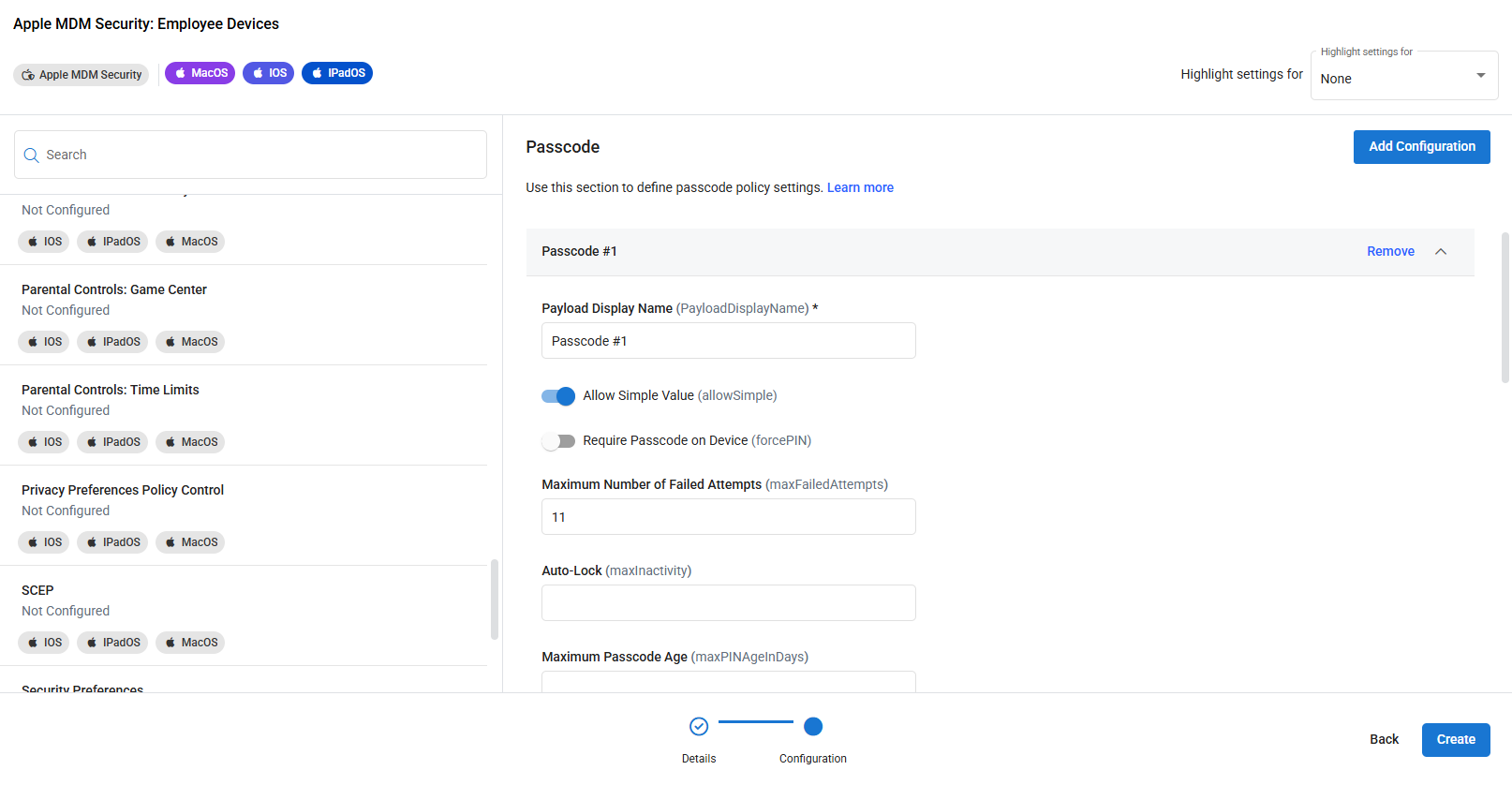
For example, this profile allows you to configure, among other things:
- Passcode requirements
- Guest Account availability
- Active Directory Certificate settings
- Parental Controls
NOTE There is a Learn more link at the top of each section that links back to Apple developer documentation on the device management profile for that configuration. 
To configure this profile:
- Using the search bar or scrolling through the list manually, select which section you wish to configure using the list on the left.
- Click Add Configuration in the upper right.
- Configure the section as desired.
- Repeat the process if you want to add more sections to the profile.
- Once finished configuring the profile, click Create in order to save your changes and create the profile.
NOTE You can have multiple security configurations in one profile.
Apple MDM System Configuration profile
The Apple MDM System Configuration profile allows you to configure system settings for MacOS, iOS and iPadOS devices.
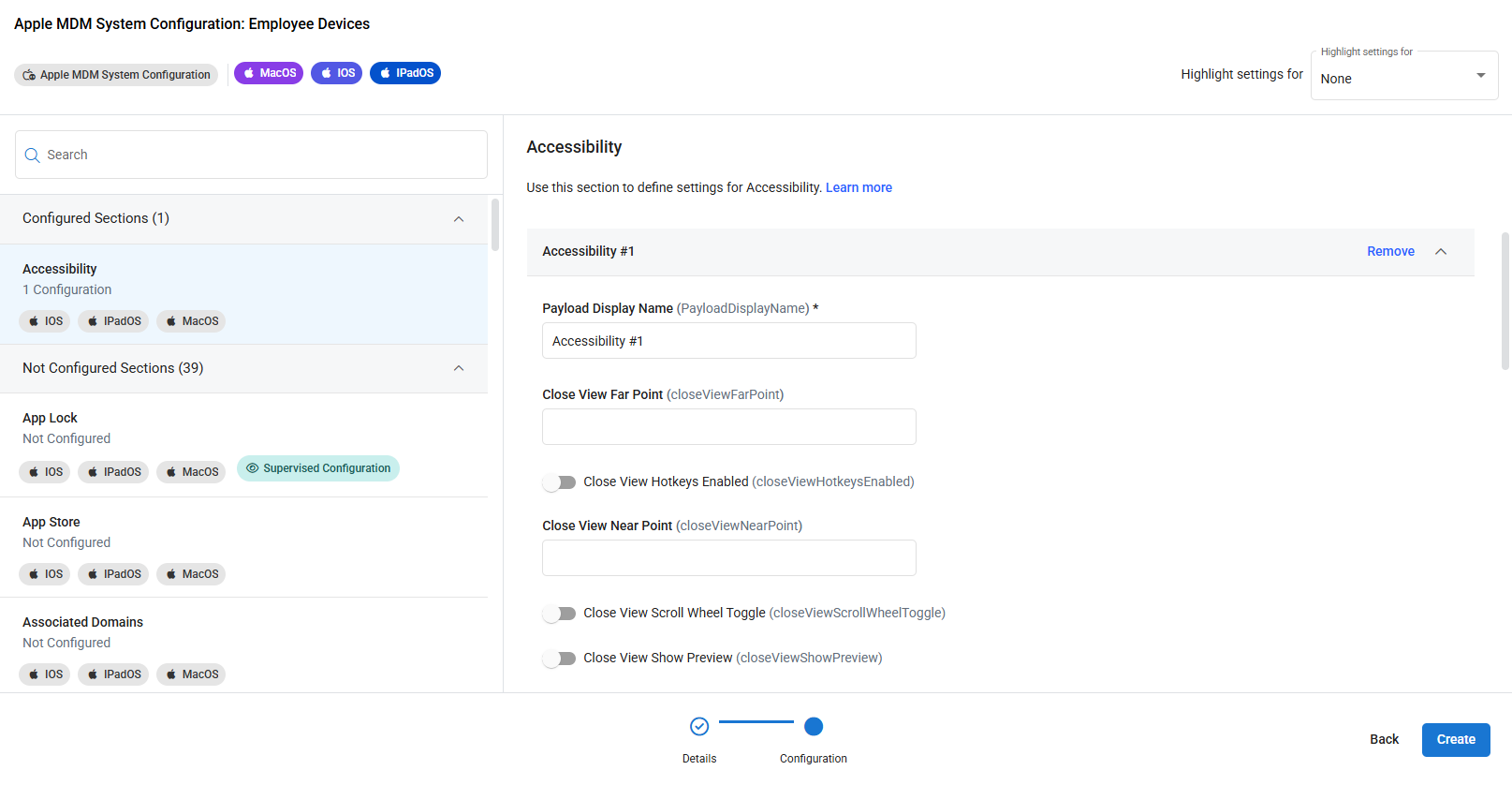
For example, this profile allows you to configure, among other things:
- Accessibility settings
- Associated Domains
- Time Machine settings
- Web Content Filters
NOTE There is a Learn more link at the top of each section that links back to Apple developer documentation on the device management profile for that configuration. 
To configure this profile:
- Using the search bar or scrolling through the list manually, select which section you wish to configure using the list on the left
- Click Add Configuration in the upper right.
- Configure the section as desired.
- Repeat the process if you want to add more sections to the profile.
- Click Create to safe the configuration and create the profile.
NOTE You can have multiple system configurations in one profile.
Apple MDM System Configuration profile
The Apple MDM System Configuration profile allows you to configure system settings for MacOS, iOS and iPadOS devices.
For example, this profile allows you to configure, among other things:
- Accessibility settings
- Associated Domains
- Time Machine settings
- Web Content Filters
NOTE There is a Learn more link at the top of each section that links back to Apple developer documentation on the device management profile for that configuration.
To configure this profile:
- Using the search bar or scrolling through the list manually, select which section you wish to configure using the list on the left
- Click Add Configuration in the upper right.
- Configure the section as desired.
- Repeat the process if you want to add more sections to the profile.
- Click Create to safe the configuration and create the profile.
NOTE You can have multiple system configurations in one profile.
Location Tracking profile
Using the Location Tracking profile, you have the ability to enable and configure location tracking on MDM managed iOS and iPadOS devices. Refer to Location Tracking profiles.
How to...
Create the profile
To create an MDM configuration profile, perform the following steps:
- From the left navigation menu in your Kaseya MDM instance, navigate to Configuration > Profiles.
- At the top of the Folders list, click All Profiles.
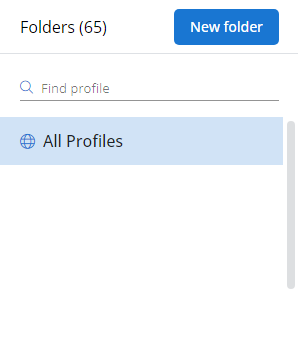
- In the Profiles pane, click New Profile.
- In the Details section of the Create New Profile page, enter a name and a brief description for the profile.
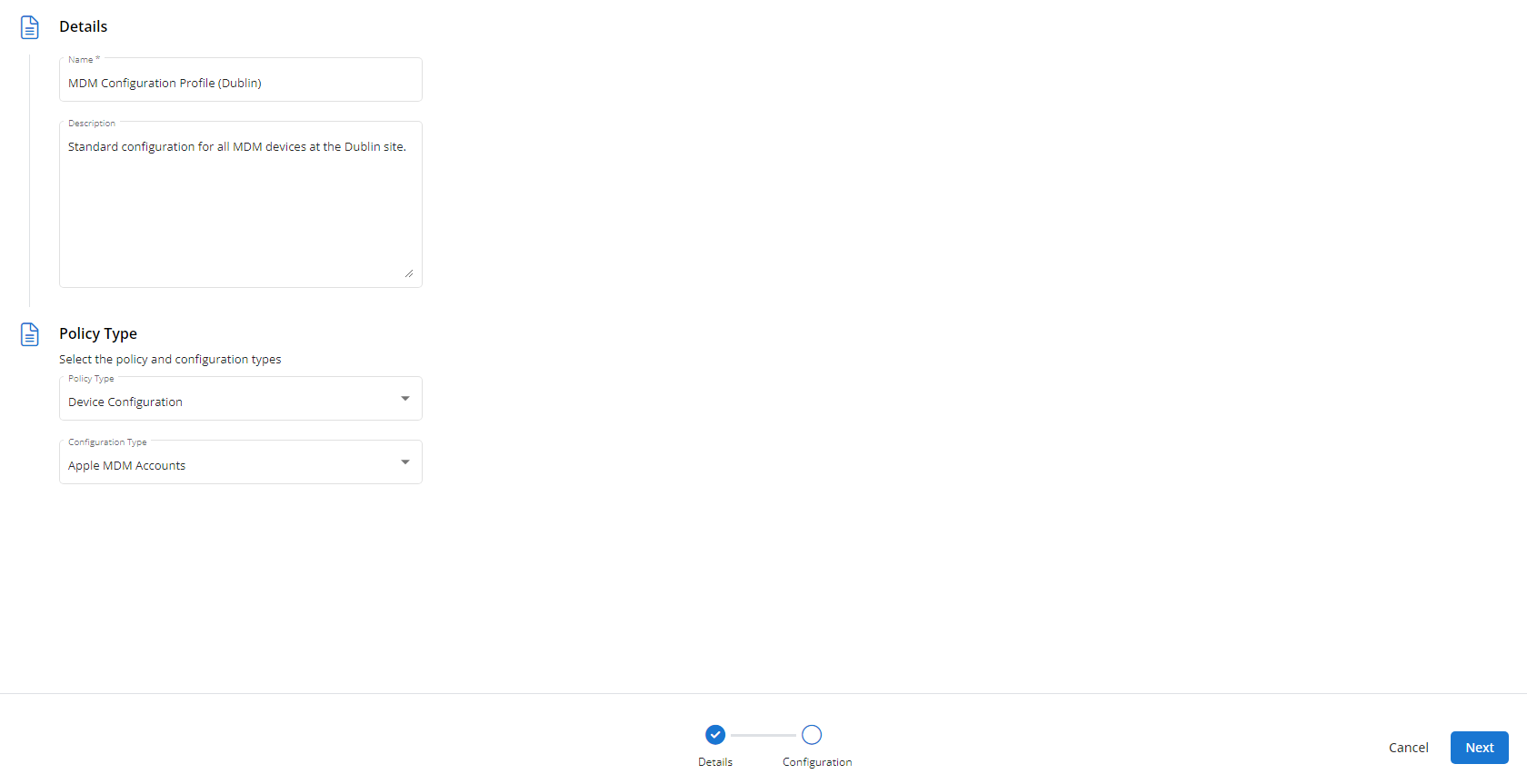
- In the Policy Type section, make the following selections:
- Policy Type: Device Configuration
- Configuration Type: Any Apple MDM or Android MDM configuration type
- Click Next.
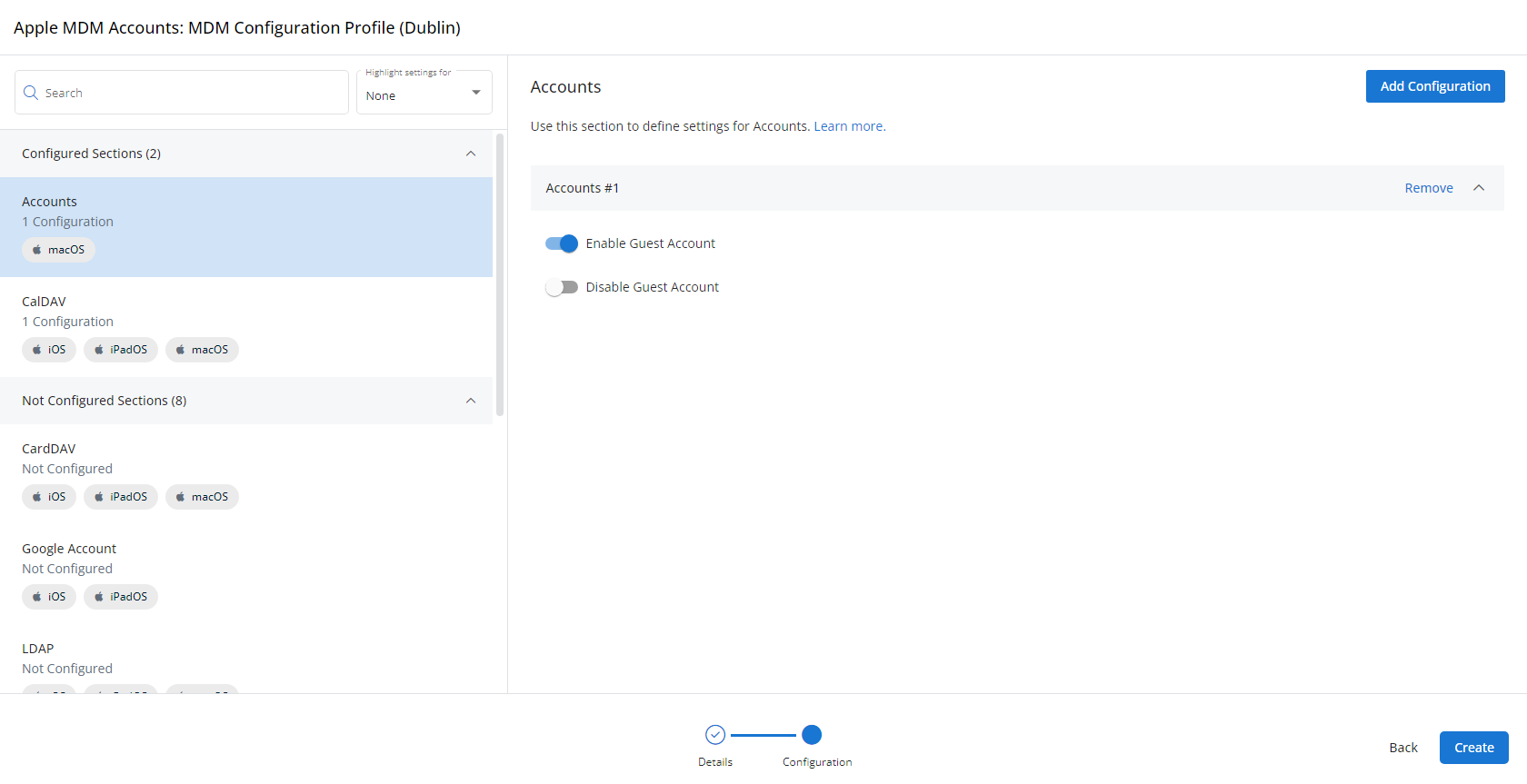
- Select a configuration section from the Not Configured Sections list. Then, click Add Configuration.
- You'll notice that the selected configuration moves into the Configured Sections list. Complete all applicable fields.
- To add additional configuration sections, click Add Configuration. To remove a section, click the Remove link next to its name.
- When you've finished customizing the profile, click Create.
Assign the profile
Next, you'll need to create a policy that defines the devices to which you'd like to automatically apply your configuration as follows:
- Navigate to Administration > Configuration. Create a new policy or edit an existing policy.
- Click Assign Profile.
- Locate the profile you'd like to use. Select it by clicking the radio button next to its name.
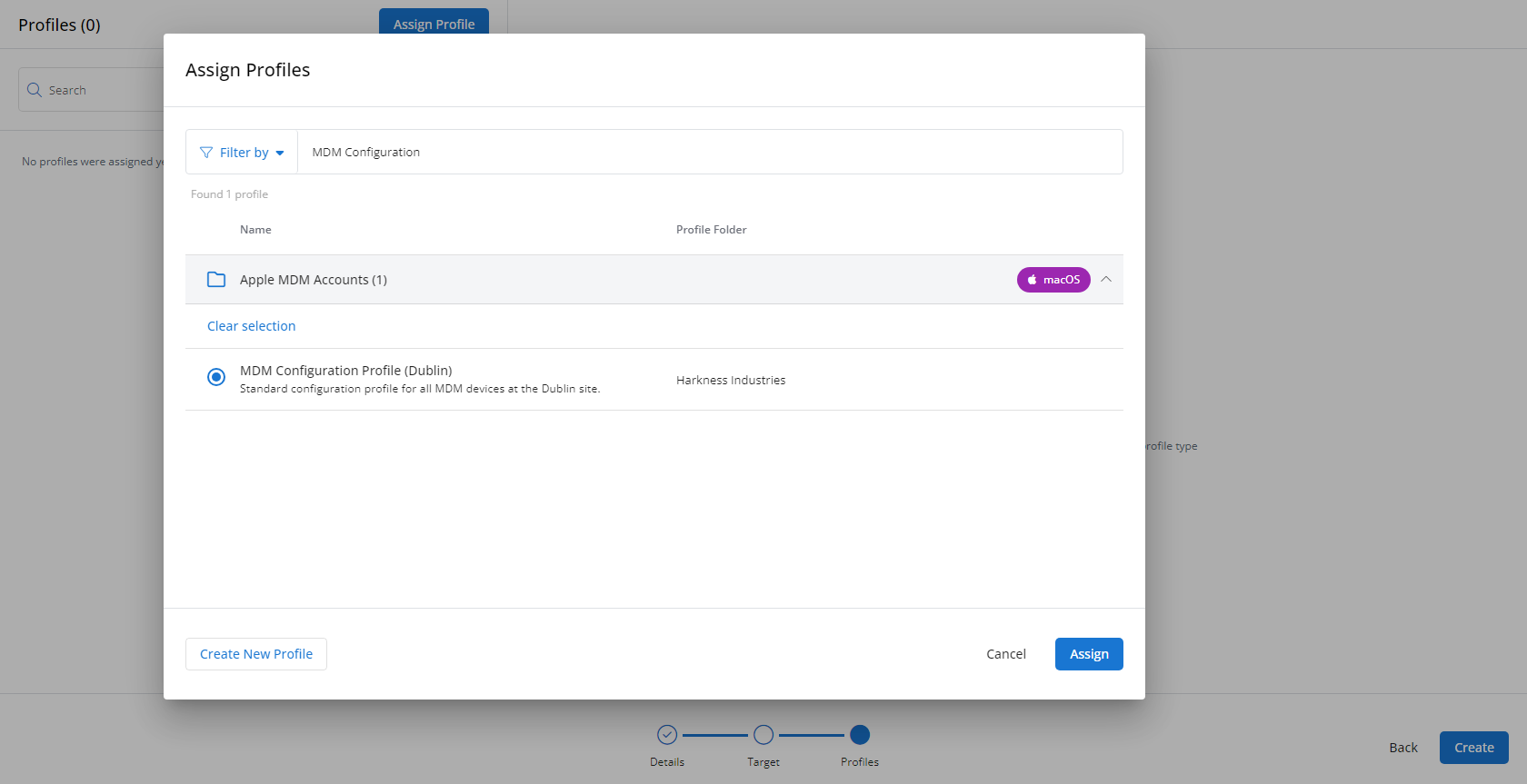
- Click Assign.
- Kaseya MDM will begin enforcing the selected profile immediately. You can view it in effect at Configuration > Policies.